Chalo A Trip You Can Describe
A travel app where the planning happens in a conversation. You describe the trip you want (where, roughly when, who with) and what comes back is an itinerary you can book from without leaving the chat.
A design rather than a build: these are the screens as drawn, not captures of a running app.
The mark is a folded map inside a speech bubble, which is the product in one shape: the map answers, but you get at it by asking.
The app
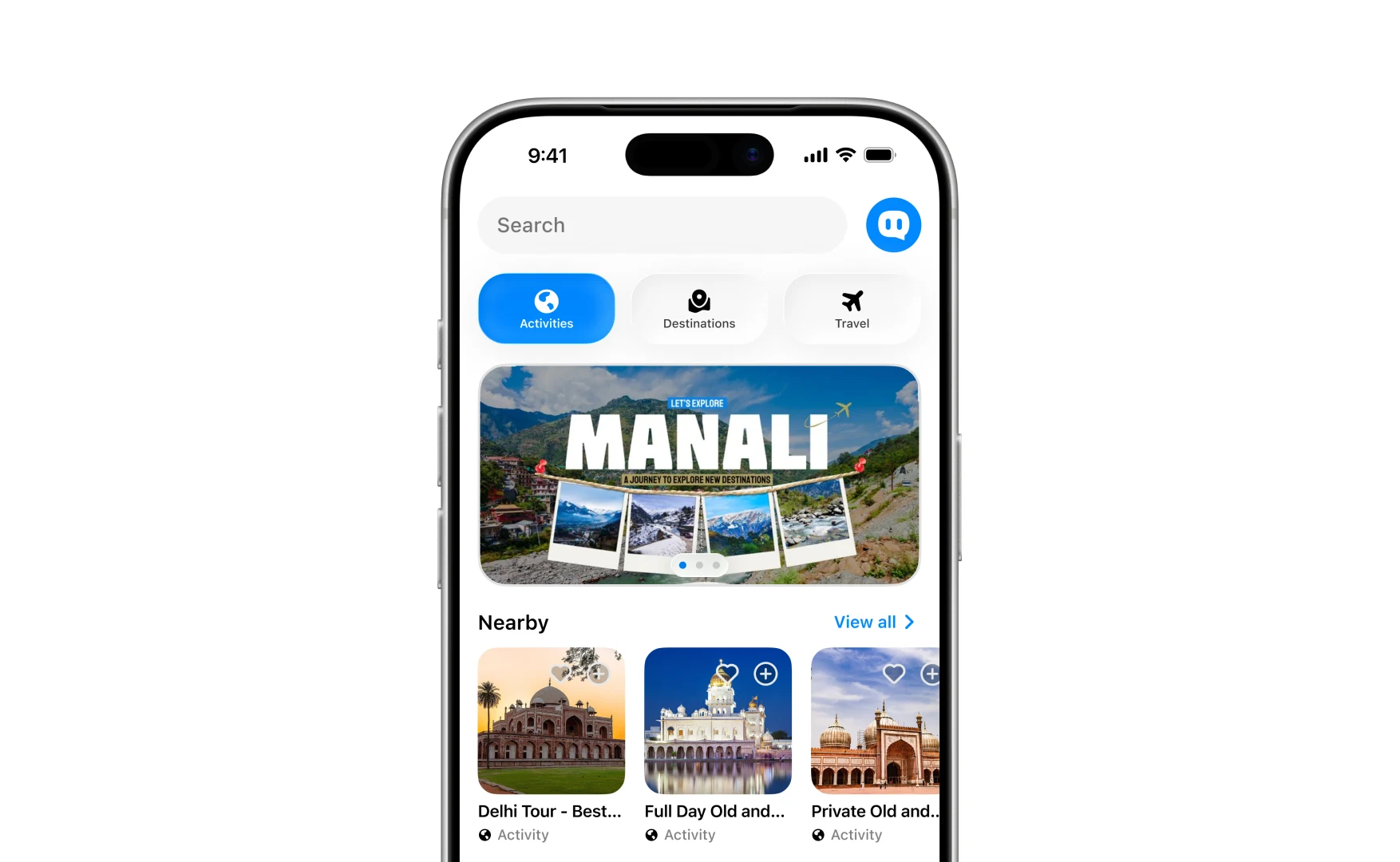
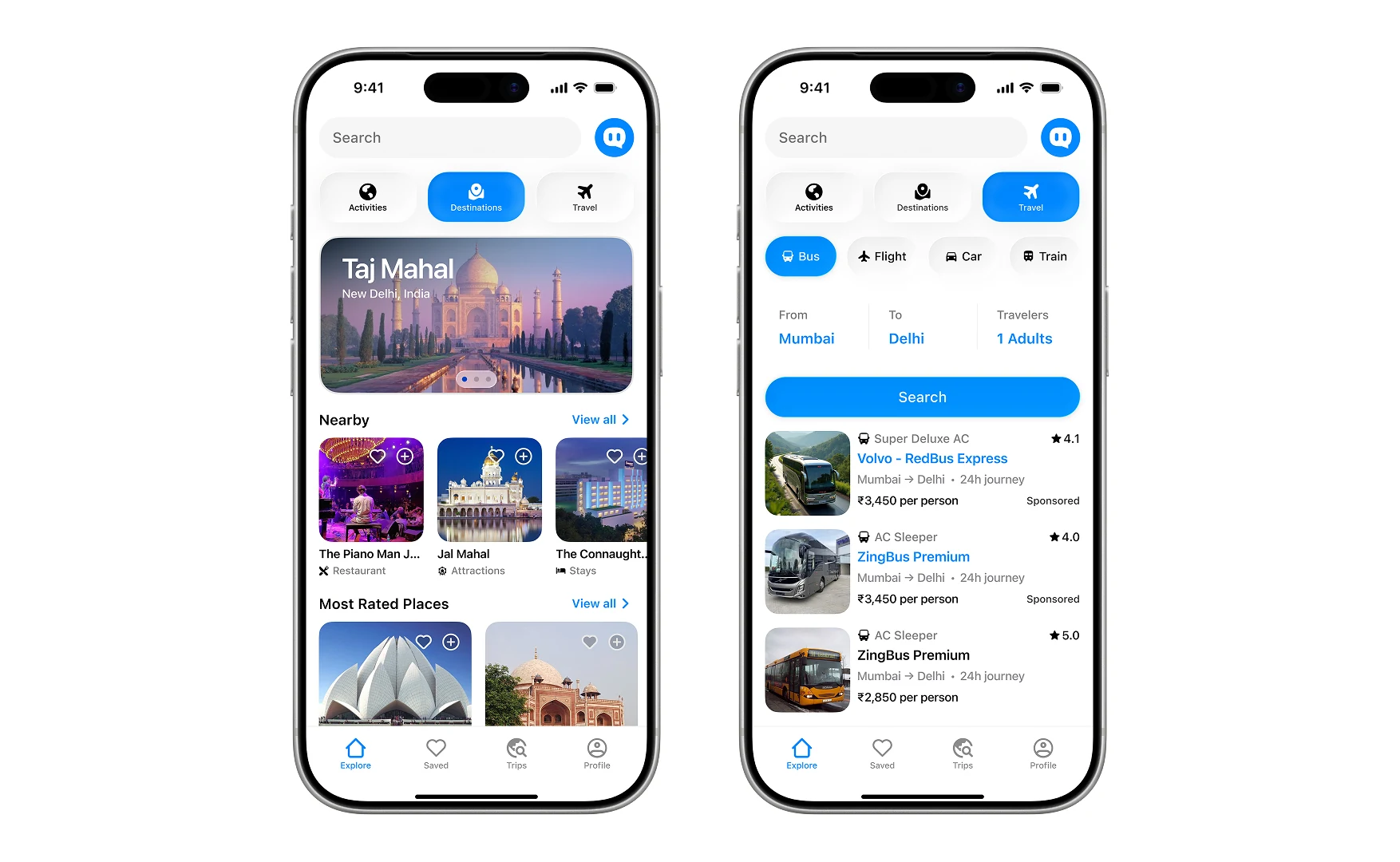
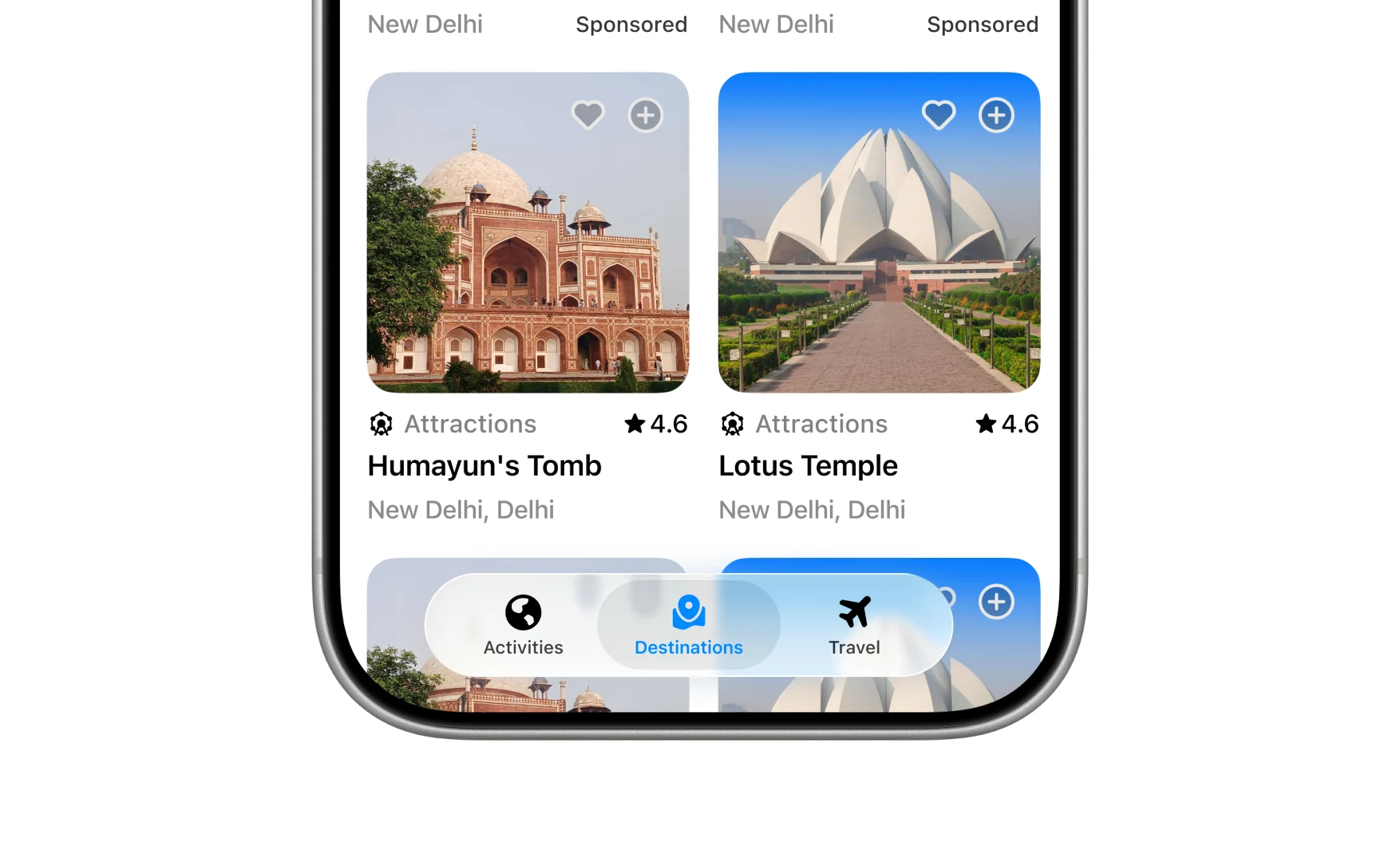
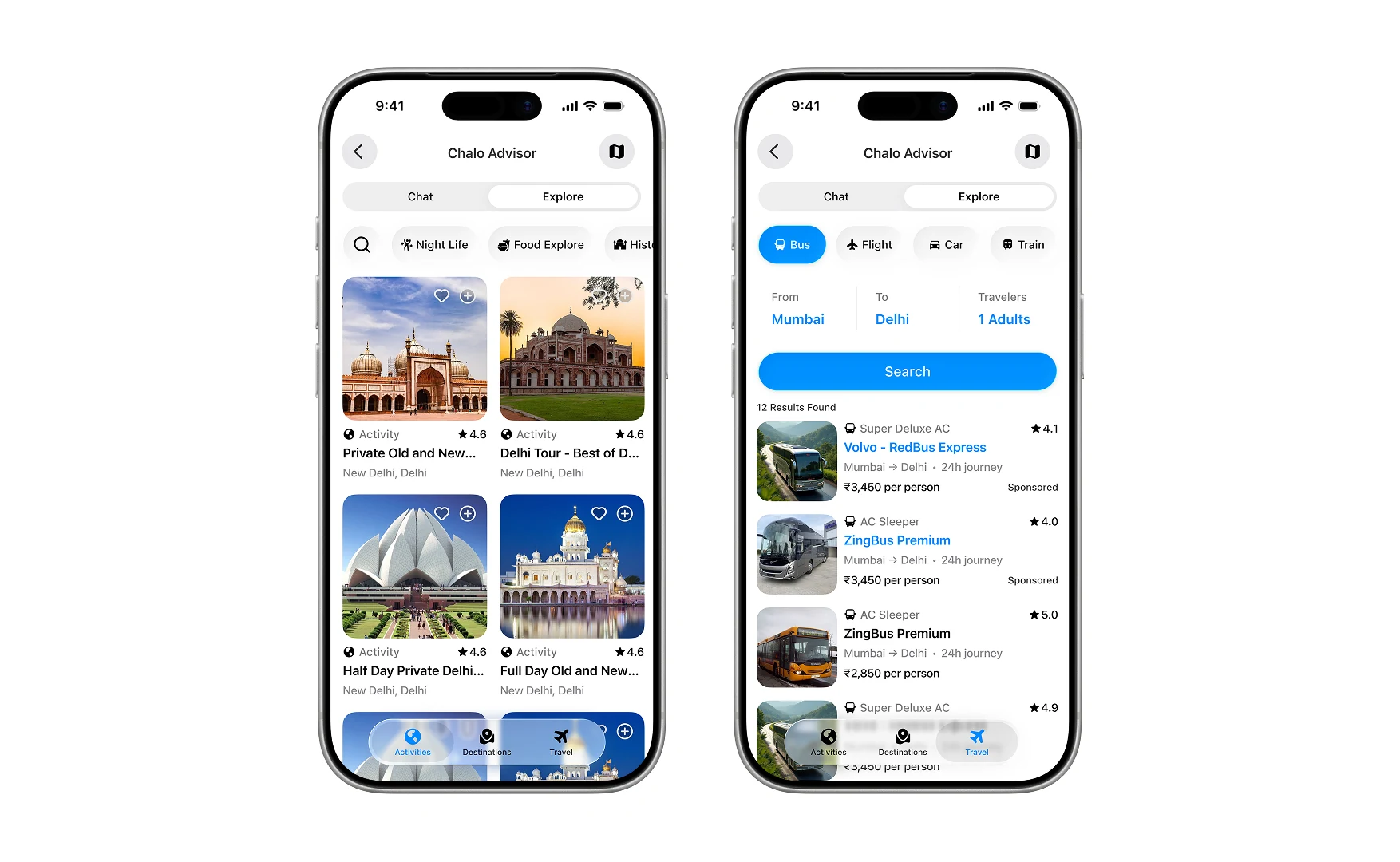
Home is three ways of looking at the same place: things to do, places to go, and how to get there.
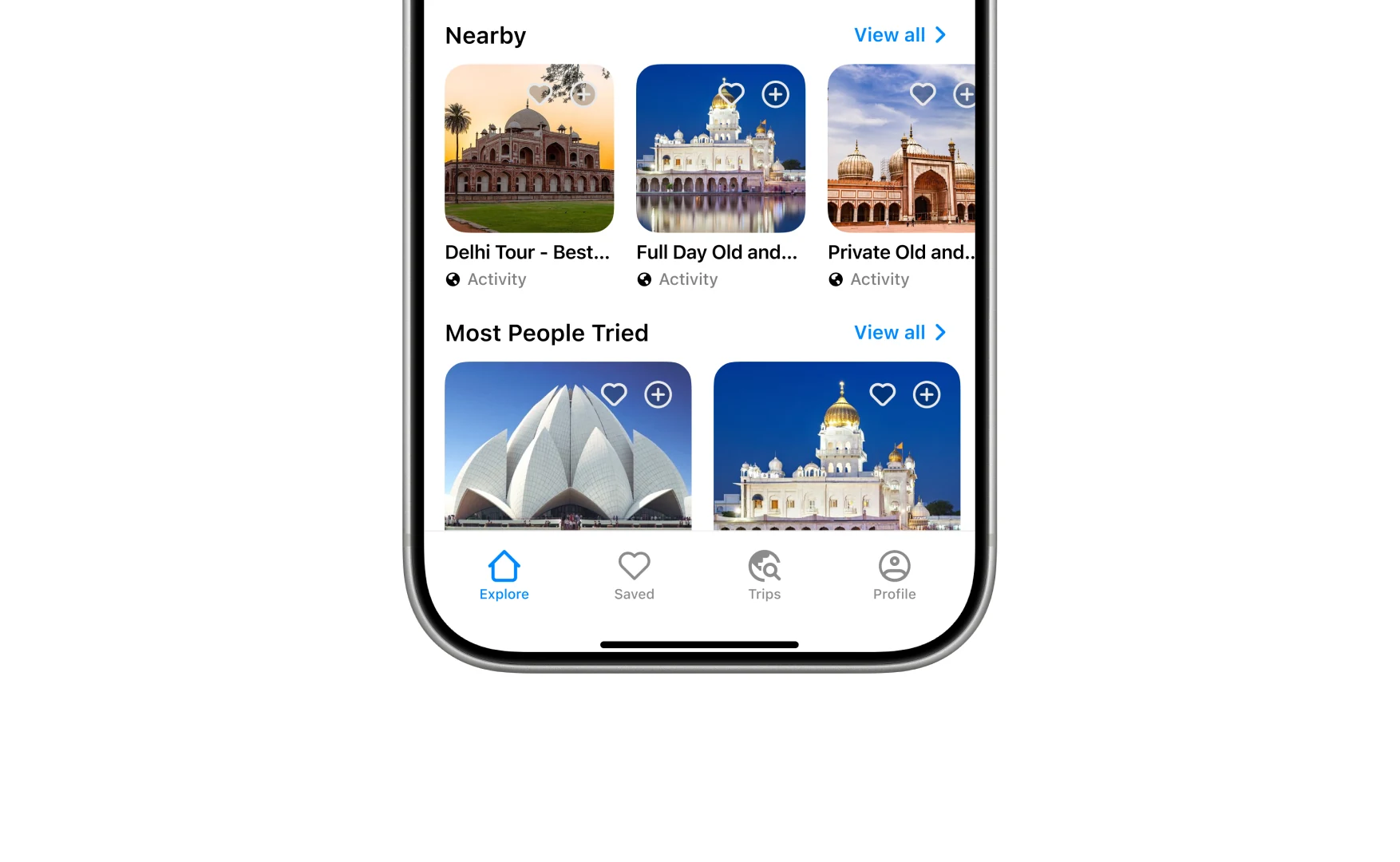
Under that it is rows you keep scrolling, over four tabs that never move.
Destinations leads with a picture and Travel leads with a form, because they are not the same question.
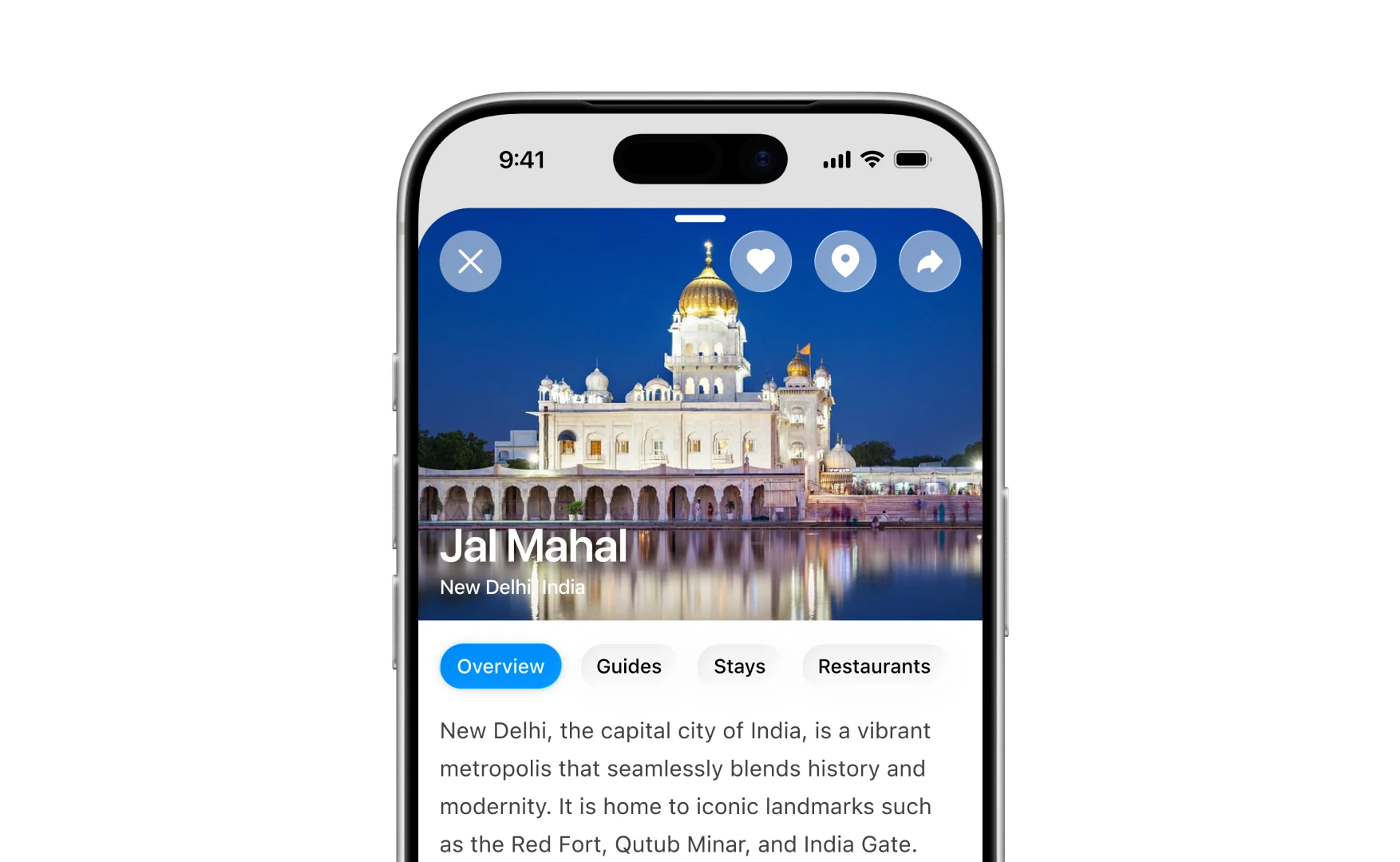
Open one of them and it is a page: what the place is, then the guides, stays and restaurants attached to it.
The advisor
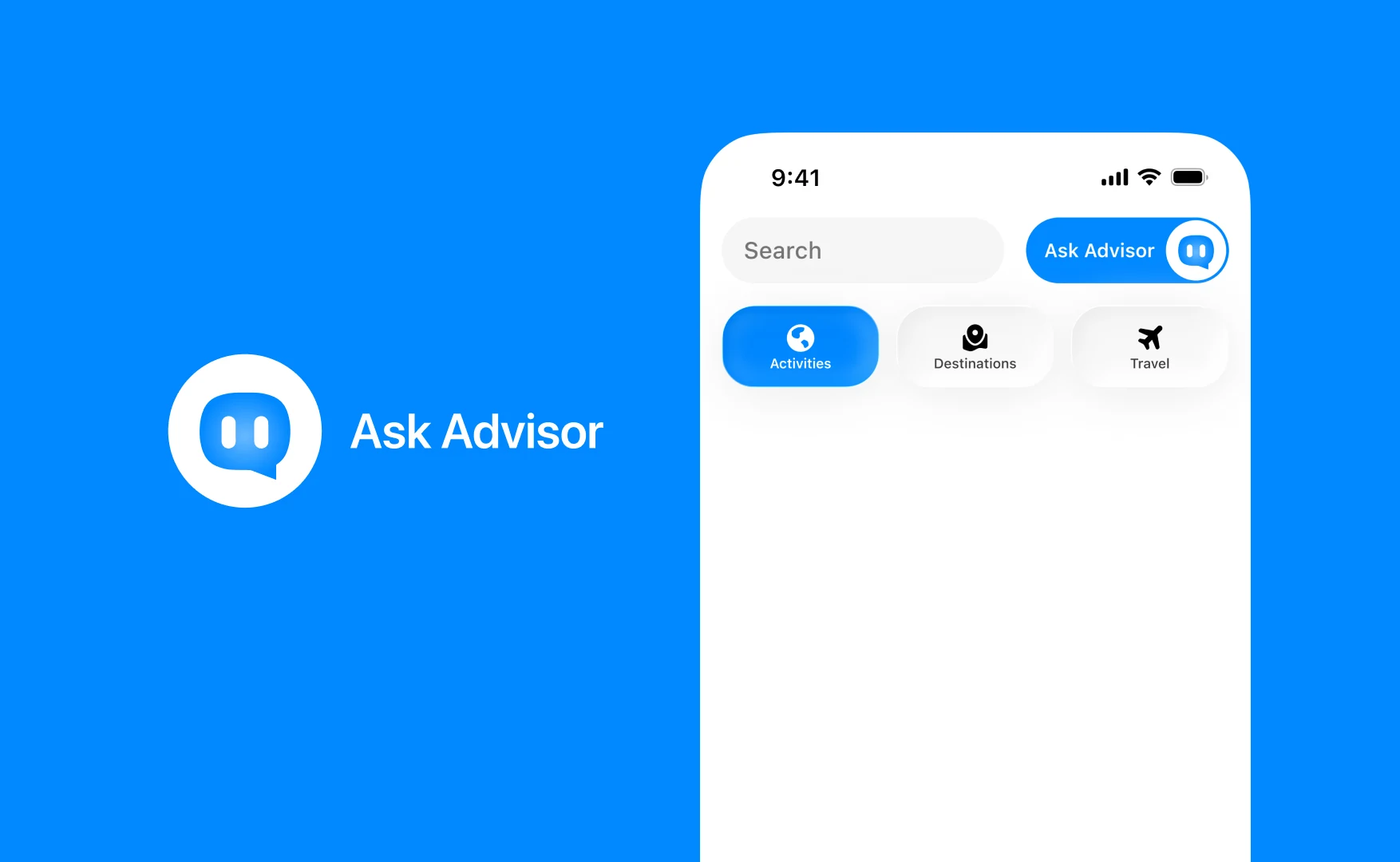
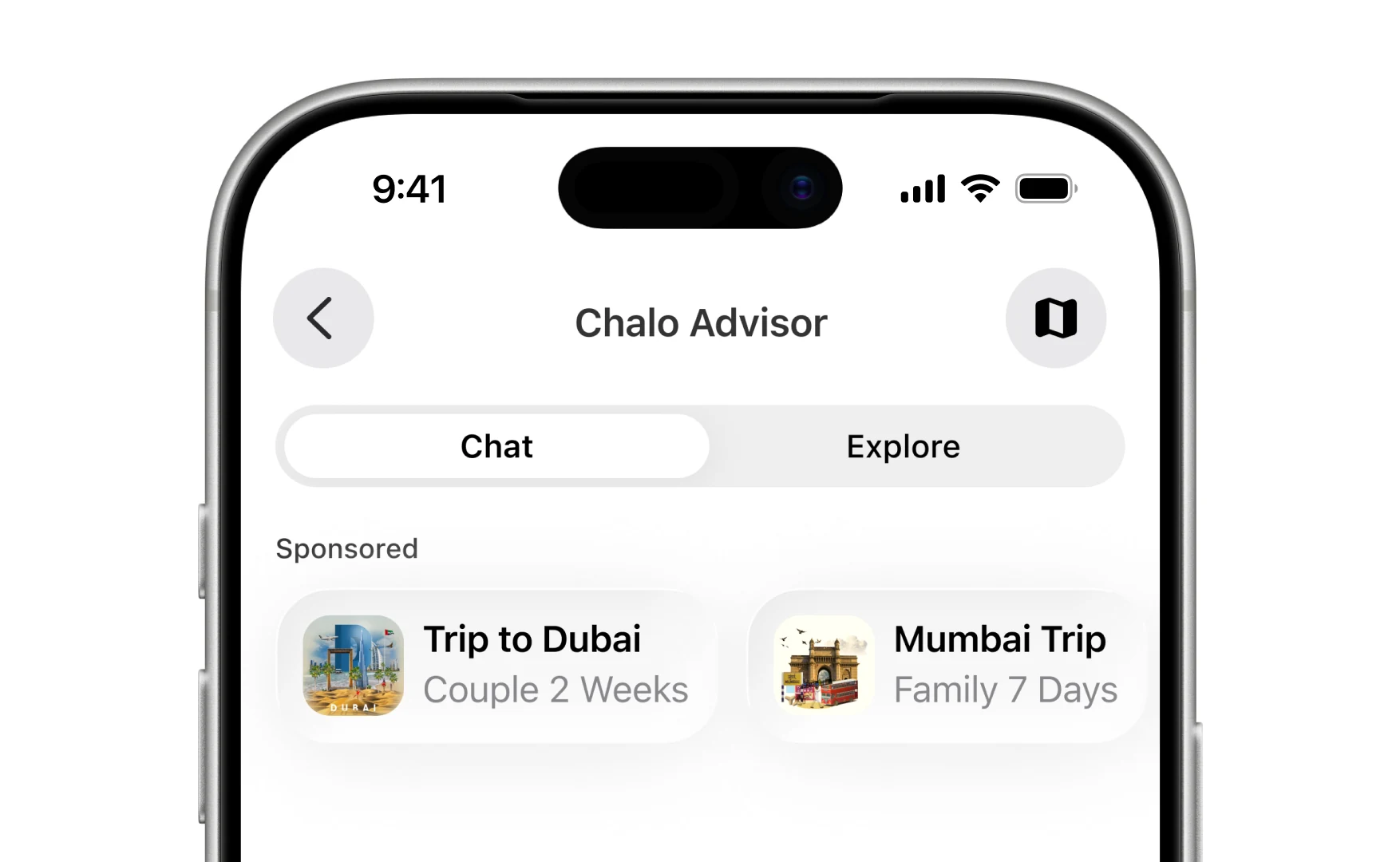
It has its own mark and sits a tap from the search bar, so asking is never further away than searching.
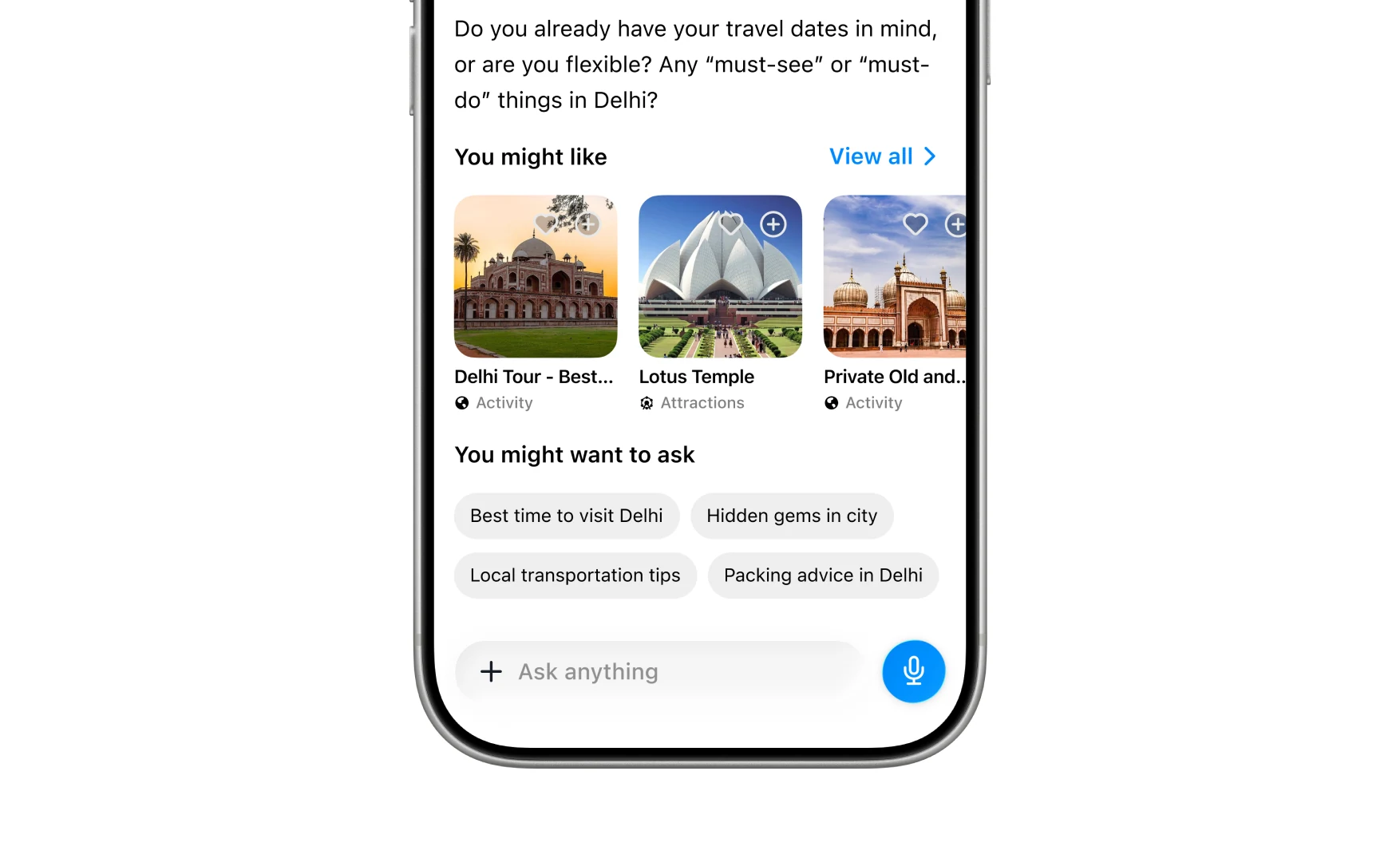
You describe the trip in a sentence (where, roughly when, who with) and it comes back with the follow-ups a good travel agent would ask before promising anything.
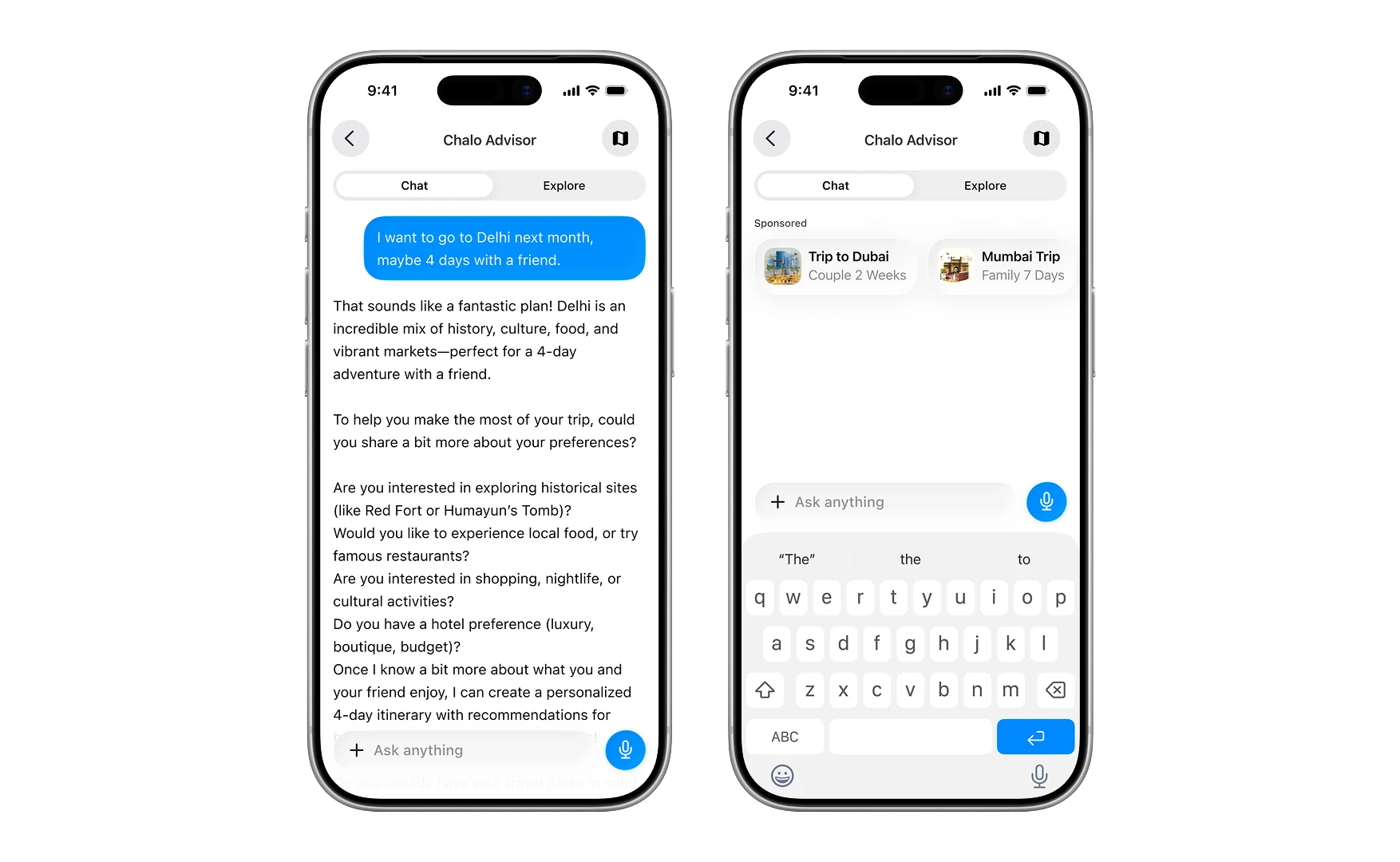
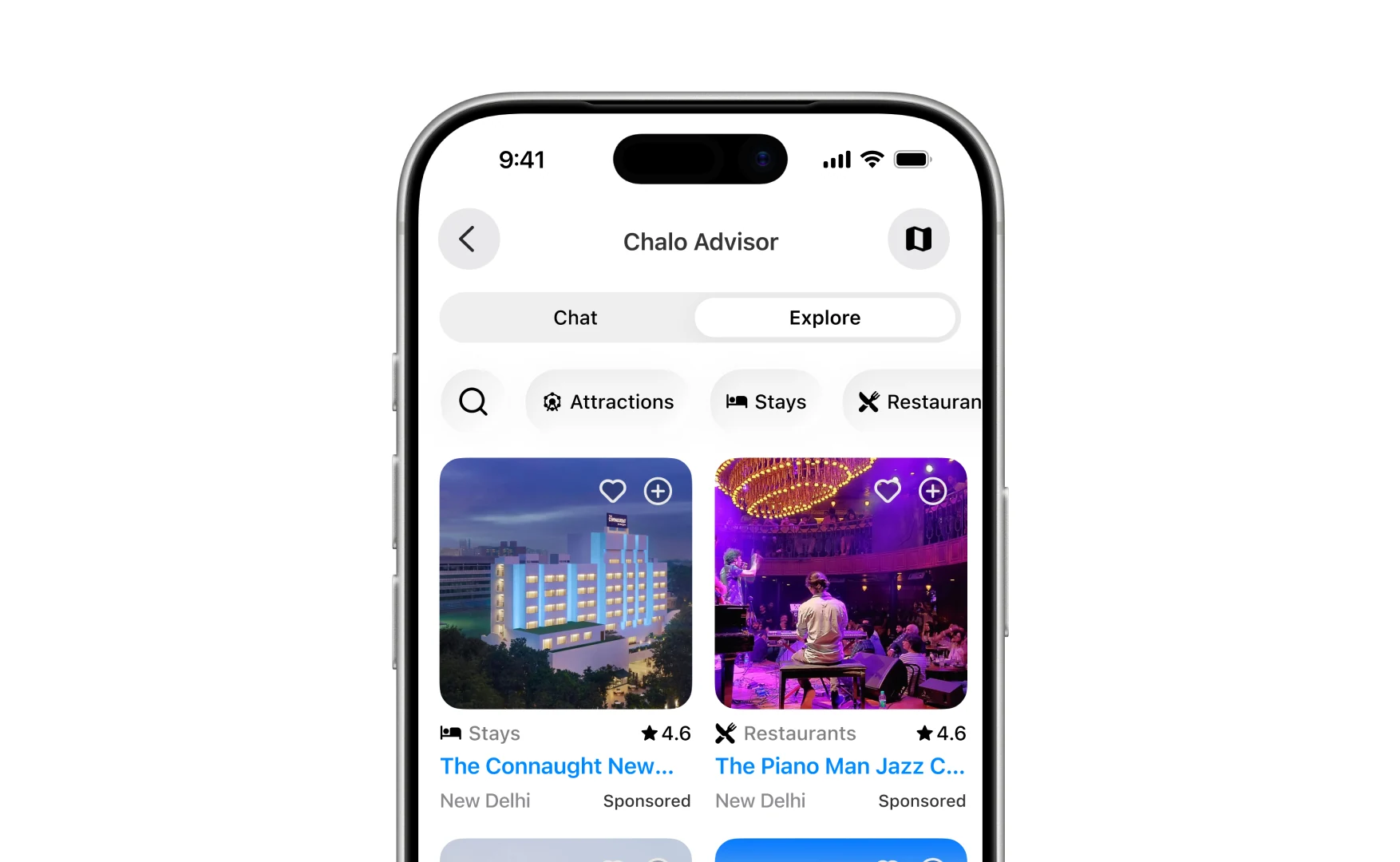
Chat and Explore are the same advisor in two moods: one talks, one shows.
A reply carries things you can keep, and the questions you were going to ask next anyway.
Explore is the same knowledge laid out to browse (attractions, stays, restaurants) rather than asked for.
Every card can be liked or dropped into a trip without opening it.
Getting there is a bus, a flight, a car or a train, and the results say which of them are paid placements.
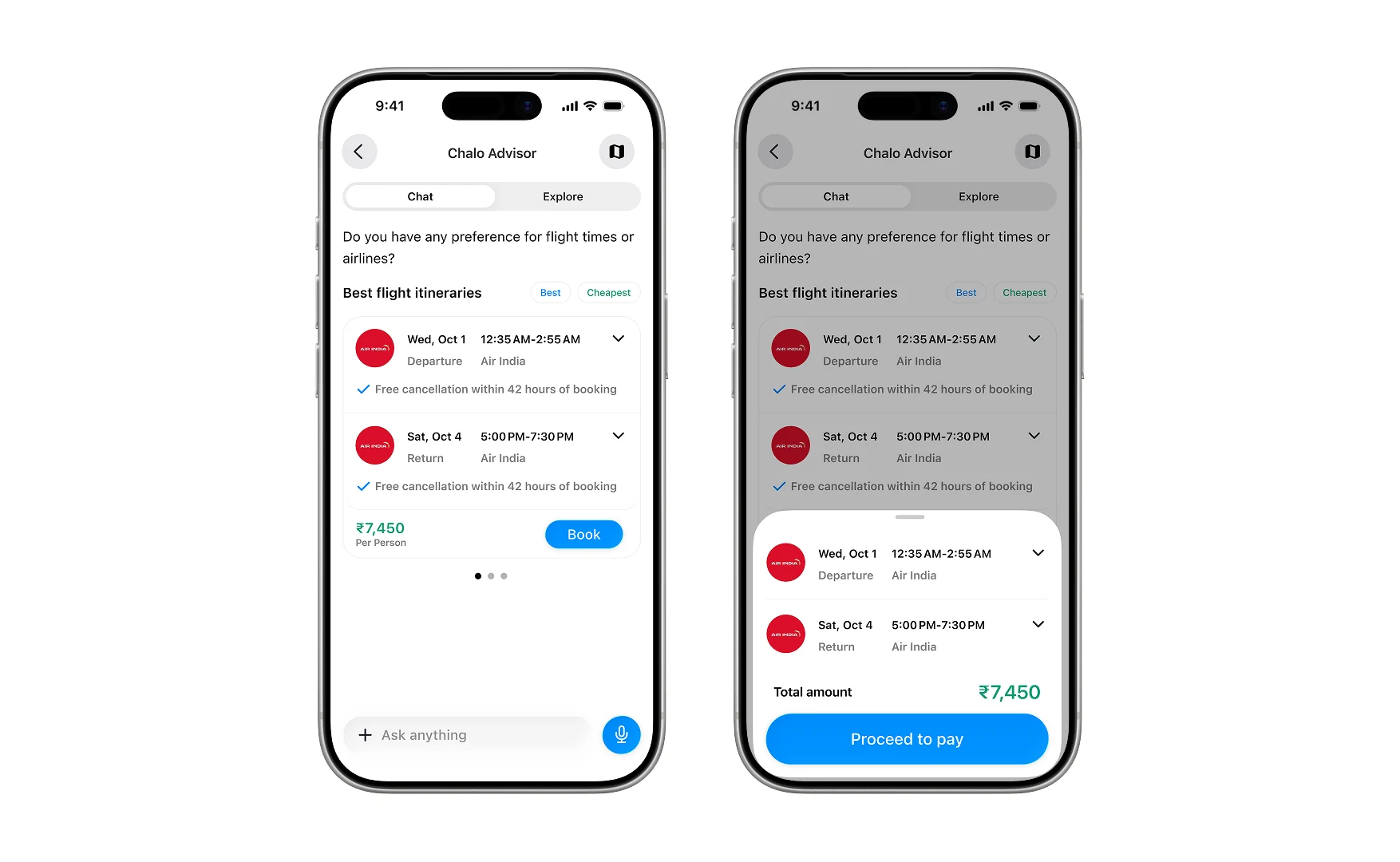
Booking, without leaving the conversation
Best or cheapest, then the total, then pay. The itinerary is a card in the chat rather than a handoff to somewhere else.
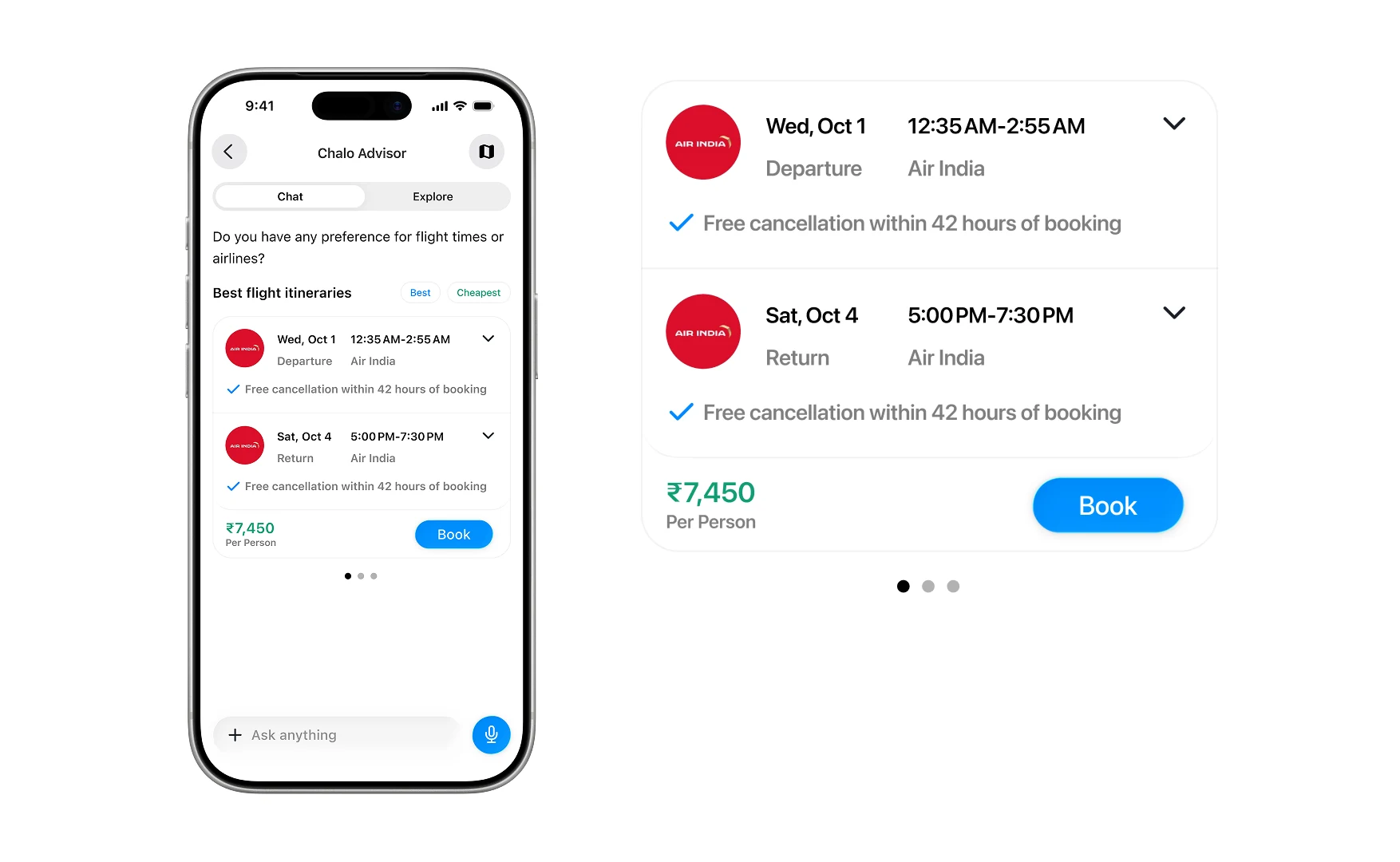
The card carries the cancellation terms, the price per person and the button, so nothing has to be looked up somewhere else.
What you keep
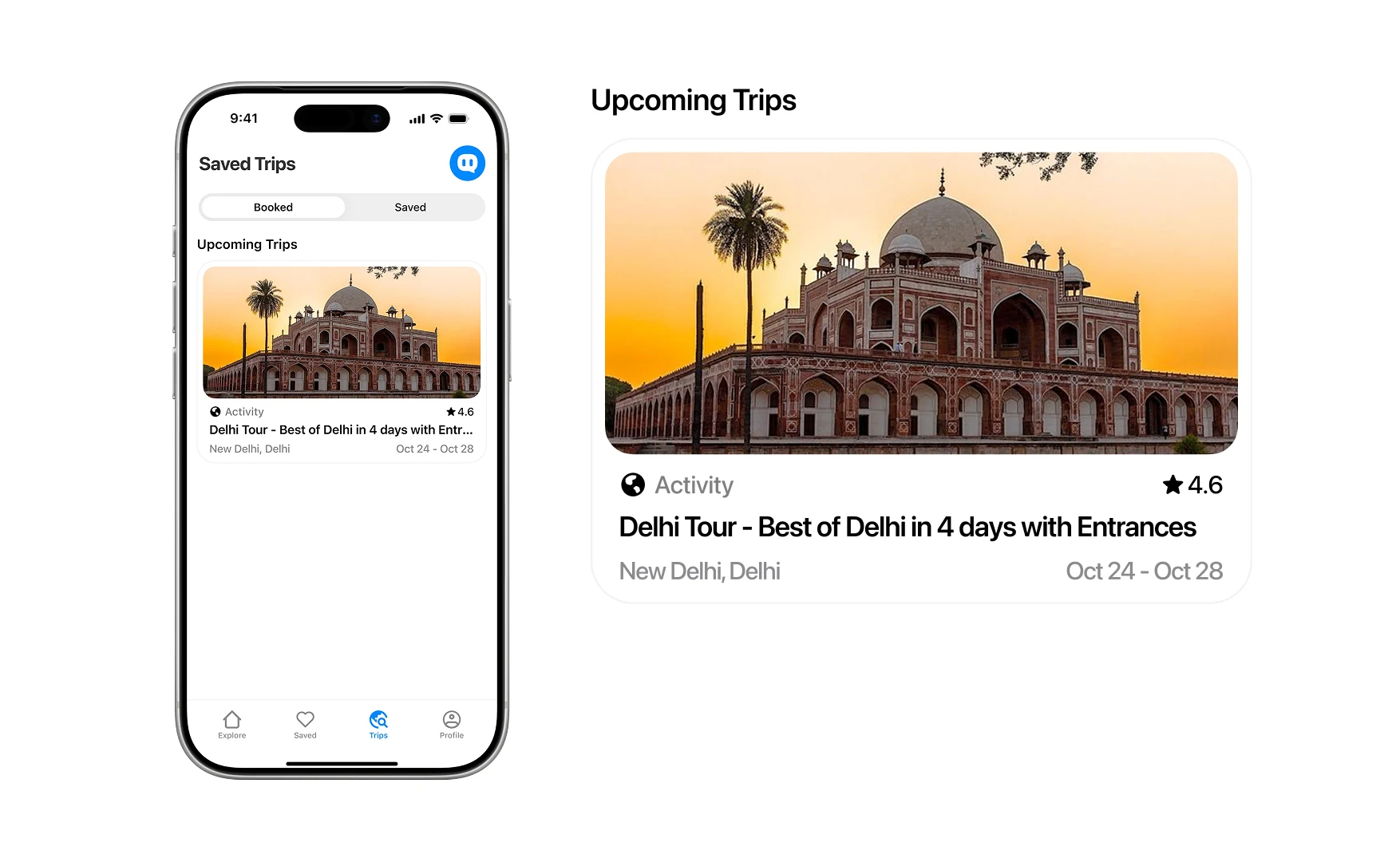
Saved is a shelf and Trips is a calendar: what you liked and what you actually committed to are kept apart.
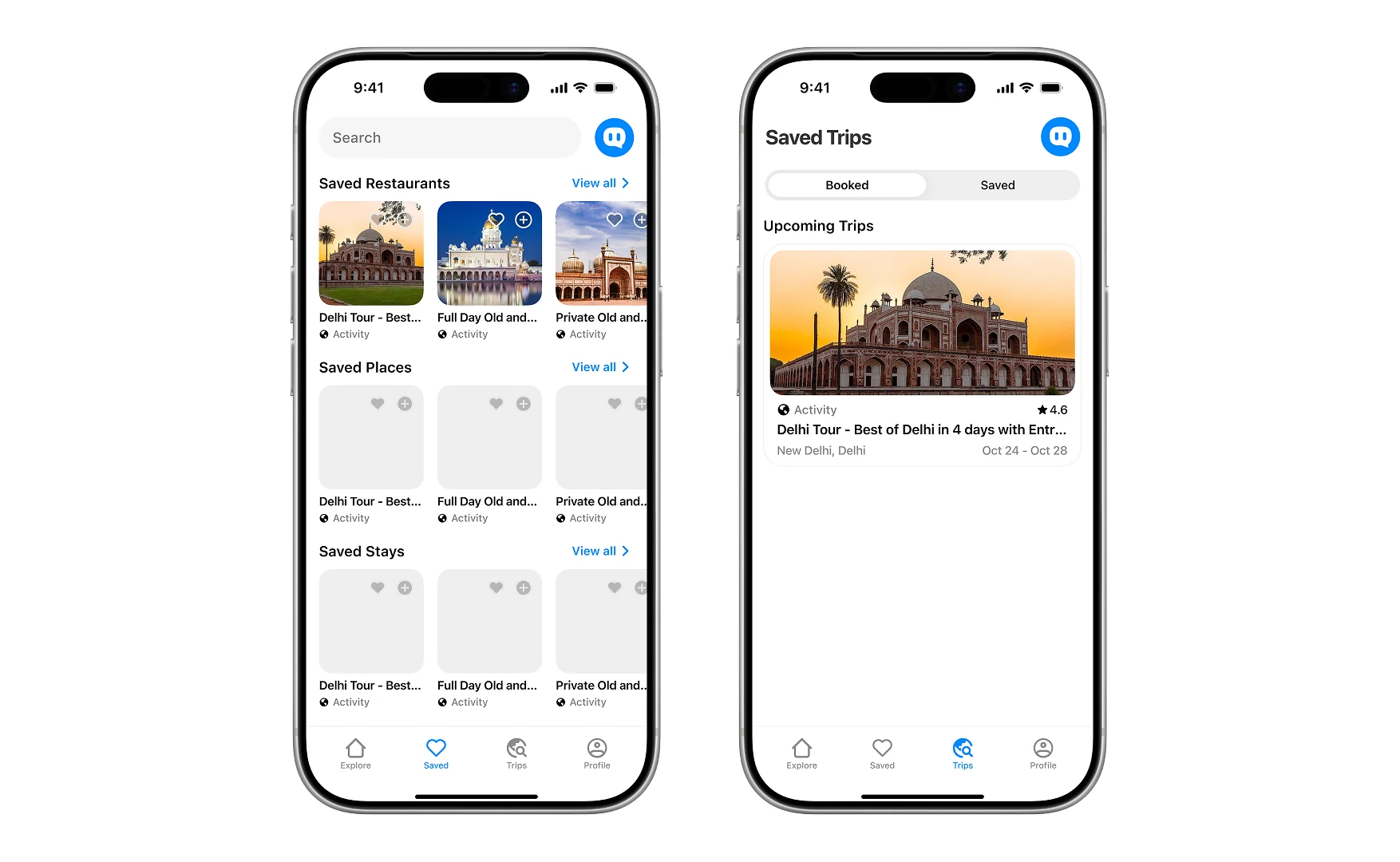
A booked trip is one card: the picture, the rating, where it is and the dates it covers.
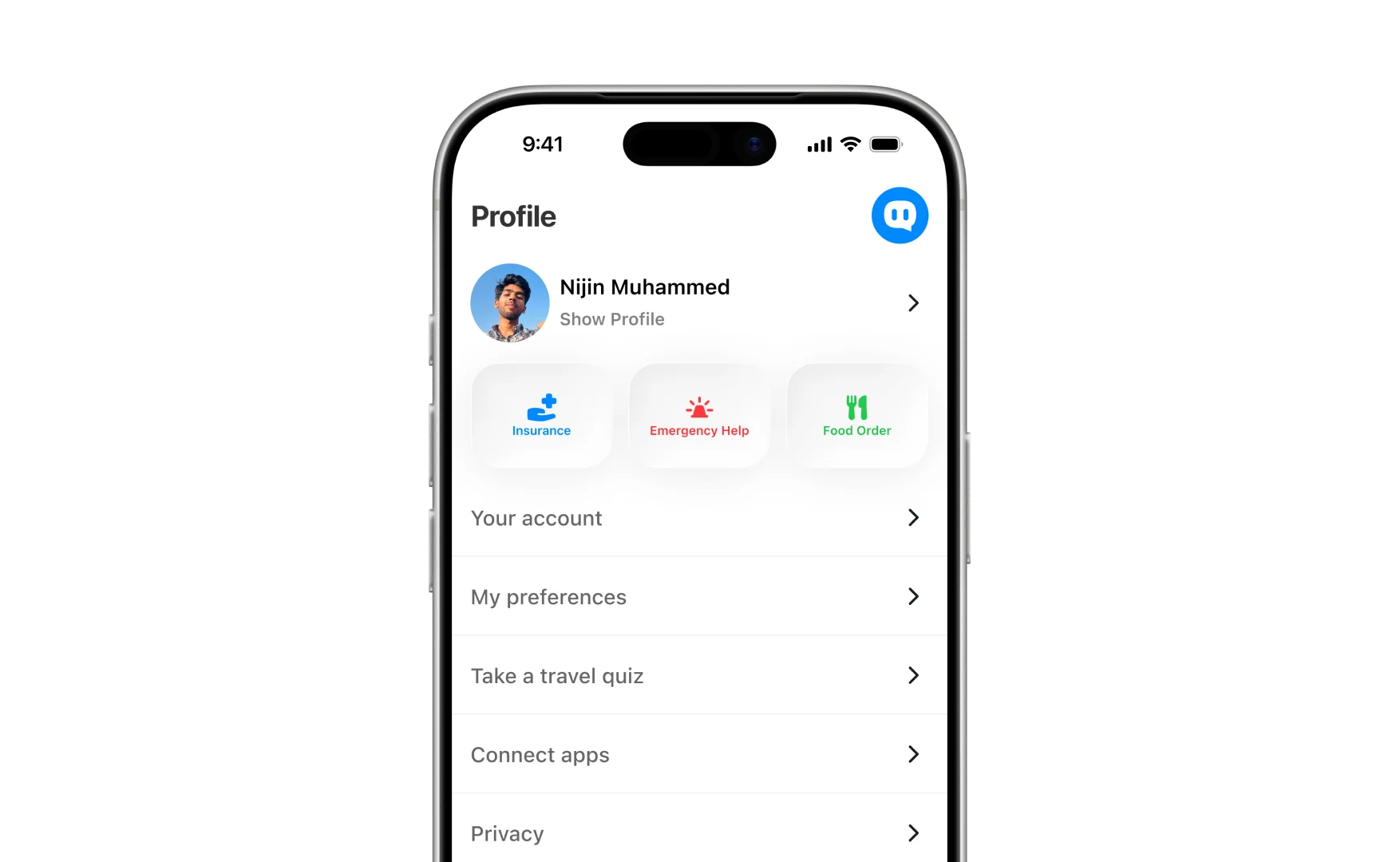
Insurance, emergency help and food sit at the top of the profile: the things you want when the trip is already happening, not while you are planning it.
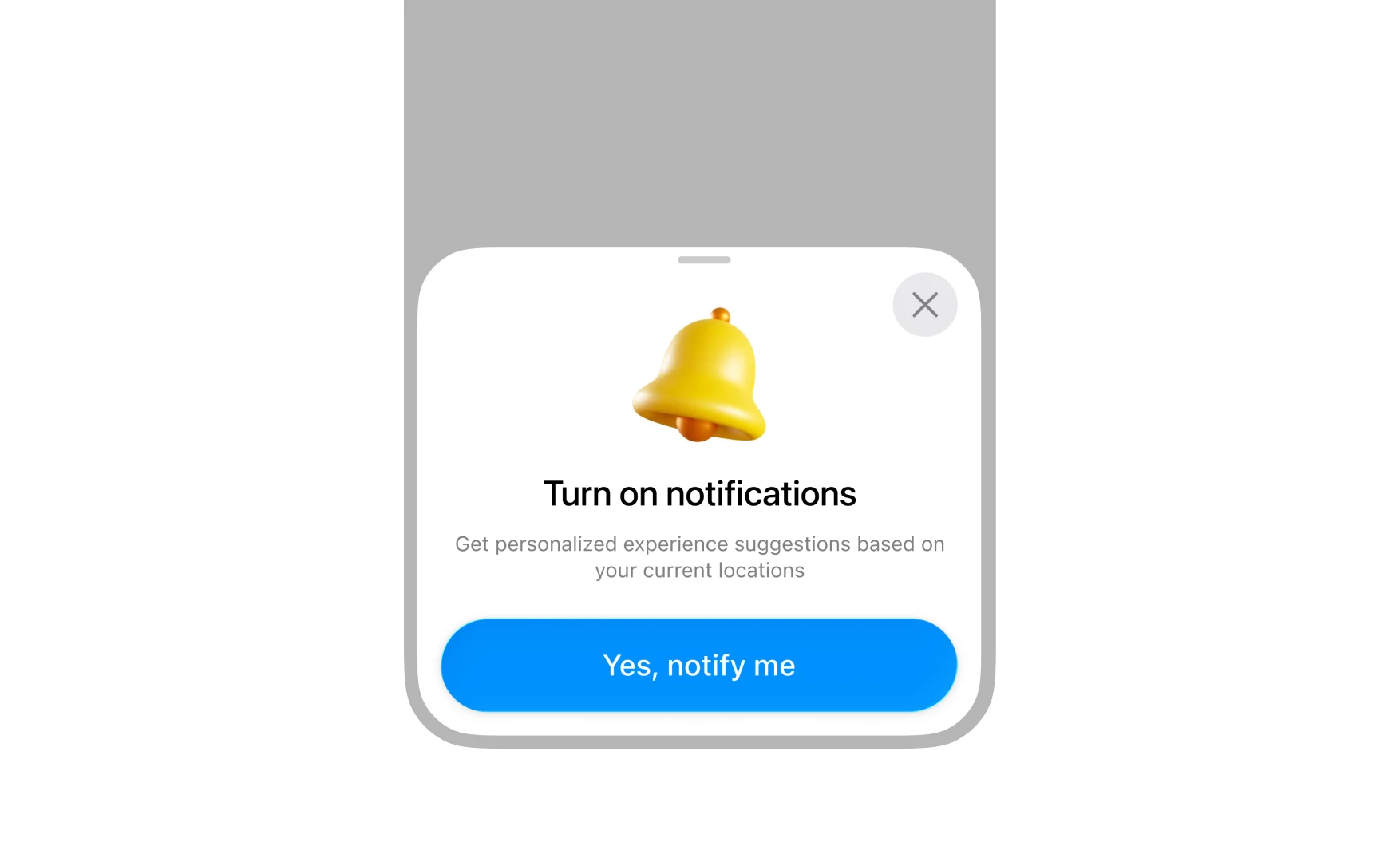
The permission ask says what it is for, and can be closed.
The other side
There is a second app, in green, for the people supplying all of this. Activities and destinations each get their own way in.